
A monitor set a little too low can make a chair feel worse than it is. Before replacing the chair, lift the screen so its top edge is roughly at or slightly below eye level. Can you read without tipping your head back? A stable laptop stand or a few sturdy books can do the lifting, though you will usually need a separate keyboard and mouse to keep your hands at a comfortable height.
Home-office discomfort often comes from several small mismatches, not one disastrous piece of furniture. What matters is less whether the desk looks orderly than whether your shoulders can relax and you can see your work clearly. Change one thing at a time, work with it for a session, and notice what helps.
Start with the chair, but look at the whole setup
Sit back with your shoulders relaxed and your feet supported. When you type, your elbows should rest near your sides without your wrists bending sharply upward. If the desk is too high, raising the chair may help your arms but leave your feet dangling. A firm footrest, or a stable box that will not slide, can close that gap. If the desk is too low, adjusting the chair alone may not be enough.
A cushion can soften a hard seat, and a small rolled towel at your lower back may help if the chair offers little support. Neither should hold you in one rigid position. If you perch on the front edge to reach the keyboard, bring the keyboard closer before adding padding. You should still be able to lean back without losing access to your work.
Armrests help when they support relaxed arms. If they push your shoulders up or stop the chair moving close to the desk, adjust them if you can. Otherwise, let your arms move freely rather than arranging your posture around the armrests. Persistent pain, numbness or tingling calls for advice from a qualified health professional, not another improvised desk accessory.
Give your hands a less awkward route
Put the keyboard directly in front of you and the mouse close beside it. Reaching across a wide desk for the mouse makes your shoulder work on every small movement. Keep the notebooks, headphones and controls you use often within easy reach, with enough clear surface for your forearms to move.
Use a light touch on the keys and mouse, and let your hands change position. A wrist rest may feel good during pauses, but pressing into it while typing can create another pressure point. Check the keyboard's height and distance first; an accessory will not fix constant reaching.
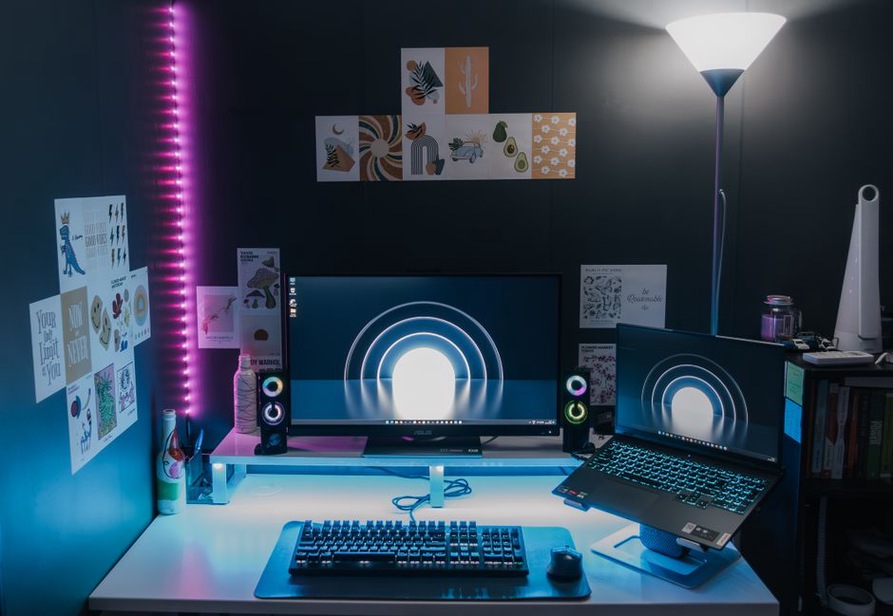
Make the screen easier to look at
Screen comfort depends on distance, text size and glare as well as height. Start with the monitor about an arm's length away, then move it until you can read ordinary text without leaning forward. If bringing it closer crowds the desk, increase the display's text size. Keep a frequently used second monitor beside the main screen at a similar height. If most of your work happens on one display, put that one straight ahead.
Before buying a glare filter, try moving the screen. A window behind the monitor can make the display seem dim; one reflected in it can make you squint. Turn the desk or angle the monitor so daylight comes from the side, then use a blind or curtain as the light changes. Clean the screen according to its manufacturer's instructions: smudges scatter light and make it harder to see.
Set brightness for the room, so the screen is neither dazzling in the evening nor hard to read by day. If you edit photographs or video, changes to display color settings can affect how you judge the work. For writing, research and administration, readable text matters more than a particular preset.
Layer the light instead of relying on one overhead fixture
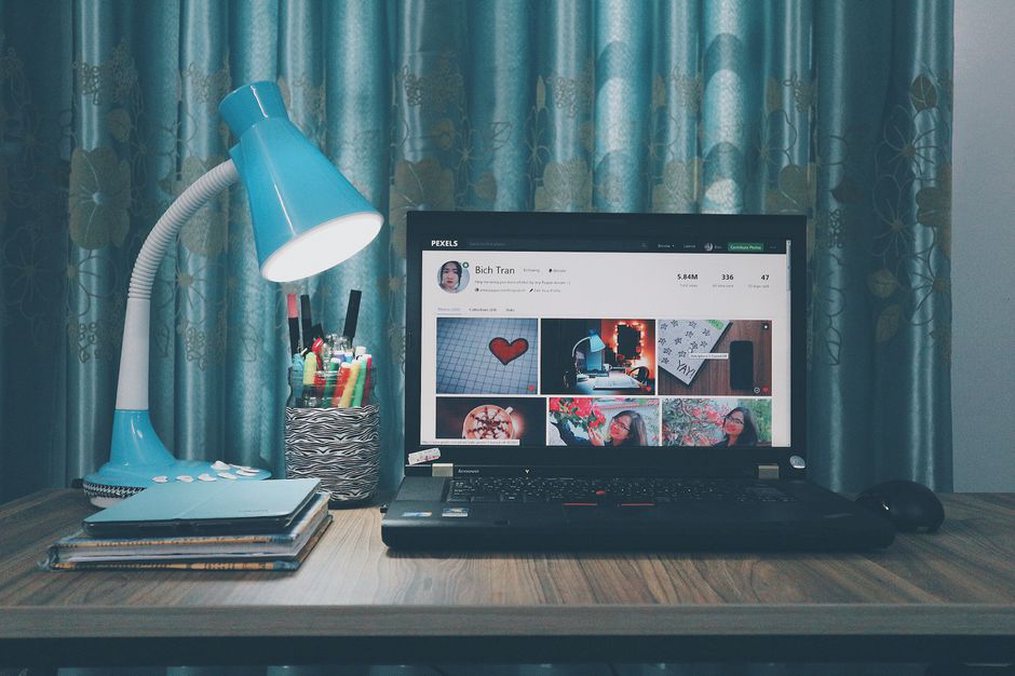
You need enough light to read paper without turning the monitor into a mirror. Start with general room light, then point a desk lamp at the notebook, mixer, cassette sleeve or other object in front of you. Keep the beam off the screen and out of your eyes. A lamp you can move is more useful than a fixed one in an inconvenient spot.
Bring paper materials into the light instead of bending toward a dim corner. If you catalogue recordings or check small-print liner notes, that might mean moving the lamp toward a side table rather than brightening the whole room. When your writing hand casts a shadow across the page, put the lamp on the opposite side.
Daylight shifts over the working day. A desk that feels fine in the morning may become harsh when the sun reaches the window. A curtain that diffuses the light, or a small change in monitor angle, may help more than leaving a bright overhead bulb on all afternoon.
Control the room's sound without trying to erase it
In a home office used for editing, listening or writing about music, background sound matters differently from task to task. A refrigerator hum, traffic wash or computer fan may disappear during email and intrude on a quiet recording. Work out which sounds interfere before treating the room. You might close a rattling door, move a noisy device or plan critical listening for a quieter time if the disruption is predictable.
Soft furnishings can reduce reflections inside a room, but they will not reliably block a neighbor's music or street noise. A rug, curtains or a filled bookshelf may make speech and everyday sounds less sharp. If noise comes through a shared wall, sealing a small door gap or moving the desk may be more realistic than expecting foam panels to isolate the room. Do not block a computer's or amplifier's ventilation to quiet it.
Headphones can help you focus for a while, though comfort varies. Take breaks, keep playback at a moderate level and check important audio decisions on equipment you trust. Constant background sound may mask interruptions during some work, yet hide details when you compare field recordings or listen to a drone's decay. Silence need not be the default, but you should be able to choose it when the recording demands close attention.
Reduce the small interruptions around the desk
A clear desk need not be empty. Give recurring objects a place: a tray for current paperwork, a hook for headphones, somewhere safe for drinks and a container for adapters in use. That way, switching tasks does not begin with clearing a space all over again.
Leave enough slack in cables for equipment to move without pulling on ports, but keep cords clear of chair wheels and walkways. Do not overload power strips or hide them under fabric where heat can build up. Replace damaged cords rather than taping over them. If you handle tapes, records or electronic equipment at the desk, keep drinks away from that working area instead of trusting a careful elbow.
Arrange the desk around the work you actually do. If you take notes while listening, leave space for a notebook beside the playback controls. If the office also serves as a packing station for small-label orders, keep packing materials together and clear them away when you return to writing or audio work. Materials left out permanently can get in the way of every other task.
Keep the air usable
A stuffy room makes sustained work unpleasant even when the furniture is well arranged. Keep vents clear and open a window when outdoor conditions allow. A fan can help with warmth, but aim it away from loose papers and your face. If you use a humidifier, follow its cleaning instructions; a neglected one will not improve the room.
Temperature preferences differ, and a home office may have a colder floor or warmer window than the rest of the home. Try another layer or move the desk out of a draft before heating the whole room. Give computers and audio gear room around their vents to release heat.
Make movement possible without a complicated routine
Even a well-adjusted workstation gets uncomfortable if you never change position. Refill your water, walk while thinking through a paragraph or stretch after a long listening pass. There is no need for a rigid timer, but it helps to notice when a task has kept you still for longer than you intended.
Keep frequently used controls close; put occasional-use objects far enough away to prompt a short walk. Making the mouse hard to reach adds strain, while keeping the printer on another shelf gives you a natural pause. During focused audio work, a break can reset your ears too. After a dense or loud passage, spend a little time in quieter conditions before deciding whether a subtle detail is missing.
A standing desk is an option, not a requirement. If you use one, adjust the keyboard and screen for standing rather than simply lifting your seated setup. Change positions when either starts to feel tiring. Standing still is not a cure for sitting still.
Test changes in an order that saves money
Start with what costs nothing. Move the keyboard closer, raise the screen on a secure support, reposition the lamp and clear the space around your feet. Then try a low-cost fix for a problem you can name: a footrest for unsupported feet, a lamp for dim paperwork or a cable clip for a cord that snags. Consider replacing furniture only when you know what the current piece cannot do.
- At the start of work: check that the screen is readable and your feet are supported.
- After an hour or two: notice whether you are leaning, squinting or reaching.
- At the end of the day: write down one recurring irritation, not a shopping list.
That short record separates a one-off annoyance from a pattern. Afternoon glare that returns each day gives you a reason to adjust the curtain. Shoulders that tense only when you use a second monitor point instead to its position. Make one change, use it for a few sessions, then decide whether to keep it.
For a ten-minute reset, pull the keyboard and mouse toward the front of the desk. Move the monitor until you can read without leaning, then put the lamp where it lights your next paper task without shining on the screen.