
If your record-store account, email inbox, and cassette-label storefront use the same password, a breach at one could put all three at risk. Give each account its own password. The trick is making those passwords available on the devices you actually use, without relying on memory or a clever naming scheme.
Start with the accounts that can reset everything else
Start with your primary email, password manager, and the account that controls your phone or computer’s cloud services. Someone with access to your email may be able to reset other passwords; a compromised cloud account could expose synced files and backups or affect connected devices. Replace reused passwords there first, then move on to banking, payment services, social accounts, storefronts, and smaller sites.
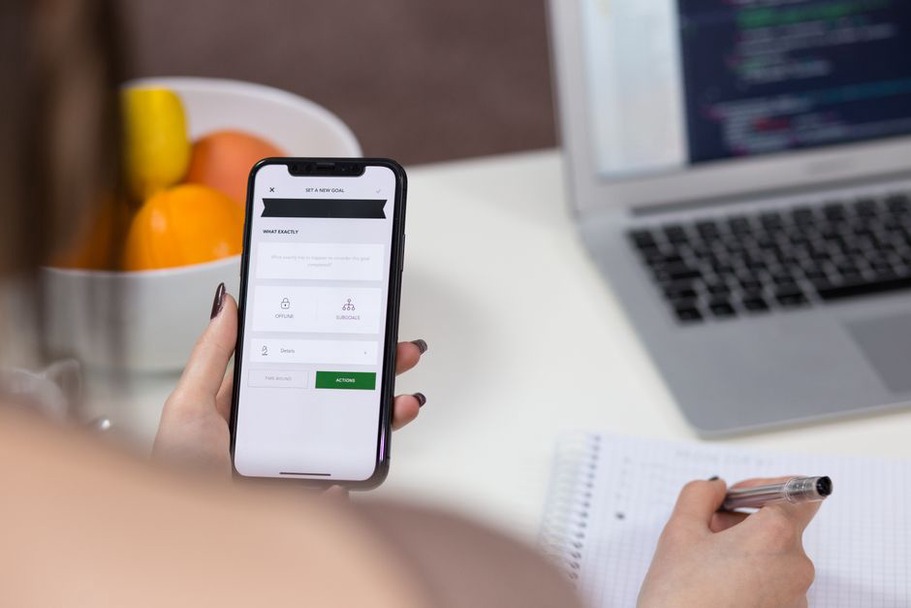
A password manager makes unique passwords manageable. It generates and stores long, random credentials, so you do not have to remember a separate string for every shop, forum, or upload service. Pick one that works with your operating systems and browsers and lets you export your data if you leave. Install it on your phone and main computer, enable browser integration where it makes sense, then save a new login and check that it appears on both devices.
Protect the vault without locking yourself out
Choose a long master password or passphrase you use nowhere else. Several unrelated words may be easier to remember than a short string of substitutions, as long as the result is long and is not a quotation, song title, or familiar phrase. Never store the master password in the vault it opens. If you write down an emergency copy, keep it somewhere private and physically secure, not in a note on your phone.
Turn on multifactor authentication for the vault if the provider offers it. Save its recovery code or emergency kit separately from your everyday devices, following the provider’s instructions. Check the recovery rules before you need them: some services cannot restore a forgotten master password. Your plan should cover losing your phone, not just signing in on a normal day.
Make new logins easy to save correctly
When you create an account, have the manager generate a unique password and save it with the exact site address. Length and randomness matter more than memorable punctuation patterns. If a site restricts password length or characters, meet its requirements without falling back on an old password.
Before you leave the sign-up page, check that the saved entry includes the right username or email. On a shared or borrowed computer, do not save the password in its browser; use your own device if you can, and sign out when you are done. If autofill does not offer the login where you expect it, pause and check the address before typing. A convincing lookalike page may use a subtly different domain.
For accounts you already have, tackle a short queue rather than trying to fix everything at once:
- Open the account using a trusted bookmark or by typing its known address.
- Change the password to a new one generated by the manager.
- Confirm that the manager saved the replacement, not just the old login.
- Check the recovery email, phone number, and active sessions.
- Sign out of unfamiliar sessions if the service offers that option.
If a service tells you your password appeared in a breach, replace it promptly—and change it on every other account where you used it, even if those services have reported no problem. Changing passwords on a schedule for no particular reason matters less than replacing exposed or reused ones and keeping the replacements distinct.
Use a second factor where it matters most
Enable multifactor authentication on your email, password manager, cloud accounts, and services with payment or publishing permissions. An authenticator app, security key, or passkey can give you more protection against account takeover than a password alone. Text-message codes are generally better than no second factor, but phone-number takeover and delivery problems make them less dependable. Choose the strongest option the service offers that you can keep using.
Store backup codes somewhere secure and separate from the device that generates your codes. If you use a physical security key, register a spare wherever the service allows it, and keep that spare away from the key you carry. Before changing phones, find out how your authenticator accounts transfer: some sync automatically, while others need an export or fresh enrollment. Test sign-in on the new phone before wiping the old one.
A passkey can let you sign in with your device’s screen lock instead of entering a password. Because passkeys are tied to a service’s domain, they can reduce the risk of phishing. Check whether yours syncs through your chosen ecosystem or remains on one device, and add another sign-in method if necessary. Keep the old recovery method until you have tested its replacement.
Keep device access part of the routine
Even a unique password offers less protection if someone can pick up your unlocked device. Set a screen lock on every device that holds your vault or receives sign-in codes. Turn on automatic locking, update operating systems and browsers, and review which devices are still signed in to important accounts. Before passing on an old phone or laptop, sign it out of your accounts and erase it using the device’s reset process.
If several people use a label inbox or project account, avoid passing one password around. Give contributors individual access through roles or delegated permissions where the service supports them, and remove that access when someone leaves. If a shared login is unavoidable, keep it in a controlled shared vault, use a second factor the team can manage, and change the password when membership changes. Individual logins also make it easier to see who can publish a release announcement or alter payment details.
Once a month, take a few minutes to check your manager’s warnings about reused or compromised passwords and remove access from devices you no longer own. For a first check, open your primary email account’s security settings: confirm the recovery details and put its backup codes somewhere you could reach without that inbox.