
A laptop mic sitting across the desk hears more than your voice: keys, room reflections, and whatever passes outside the window. Bringing a microphone closer to your mouth often helps more than changing a setting or buying a pricier one. Before your next call, record thirty seconds at your usual seat. Are words distant? Is there echo, hiss, a burst of background noise, or a dropout when two people speak at once?
Start with distance and position
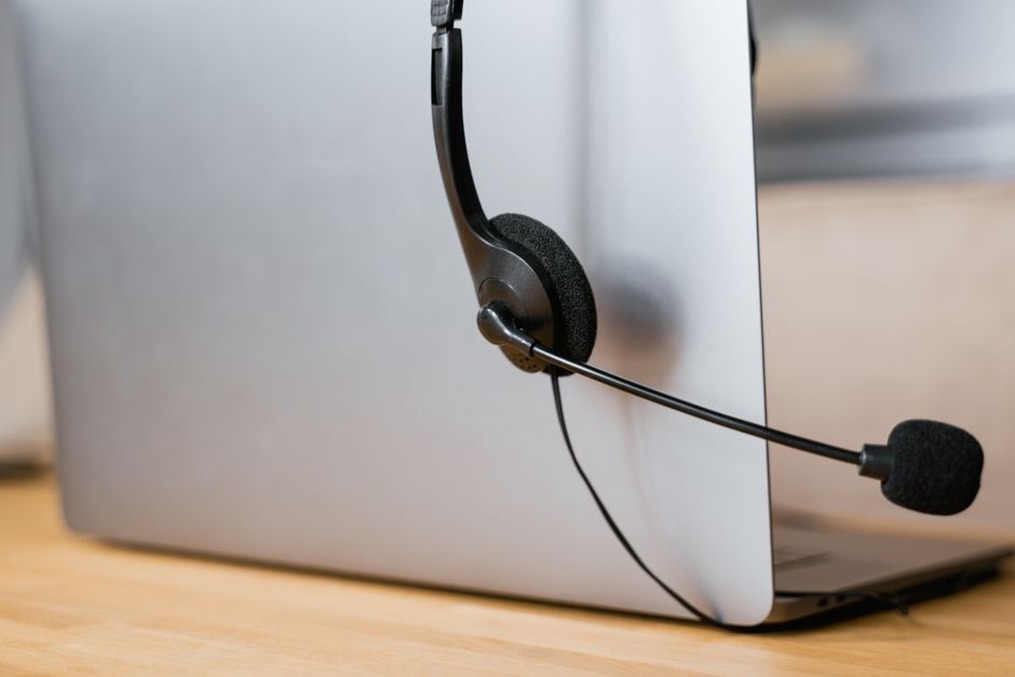
Your voice needs to be louder at the microphone than the room around it. With a laptop’s built-in mic, sit close enough to speak normally, without leaning back across the desk. Make sure a notebook, sleeve, or hand isn’t covering the mic openings. A wired headset or earbuds with an inline mic put the pickup point closer, though a cable brushing against clothing can add noise of its own.
A desktop microphone needn’t be directly in front of your lips. Set it on a stable surface, roughly a handspan from your mouth if its design allows, and a little to one side to soften breath blasts on consonants. Placement depends on the model: some mics pick up from the end, others from the side. Speak into the intended surface, not the top of a side-address mic. A short recording is a better guide than appearances.
Keep the mic clear of the keyboard, desk fan, and vibrating laptop. If typing produces a dull thump, a folded cloth under a desktop stand may reduce vibration through the desk. It won’t silence loud keys; muting while you type extensive notes may be the cleaner fix.
Make the room less audible
Hard, bare surfaces can leave speech with a hollow tail, especially when the mic is far away. A small furnished room is usually a better bet than an empty kitchen. Curtains, a rug, a fabric sofa, or bookshelves may reduce reflections, but they won’t soundproof the room or stop a neighbor’s drill. A soft surface near a bare wall might help a little; try moving the microphone closer first.
Deal with noise you can control without making the room uncomfortable. Close a window for the call, move away from an appliance that cycles on and off, or switch off a desk fan briefly if ventilation permits. Listen before you start moving furniture around. Traffic rumble, echo, and computer fan noise are different problems, though a closer mic can make each less noticeable by picking up more of your voice.
Use headphones to prevent feedback
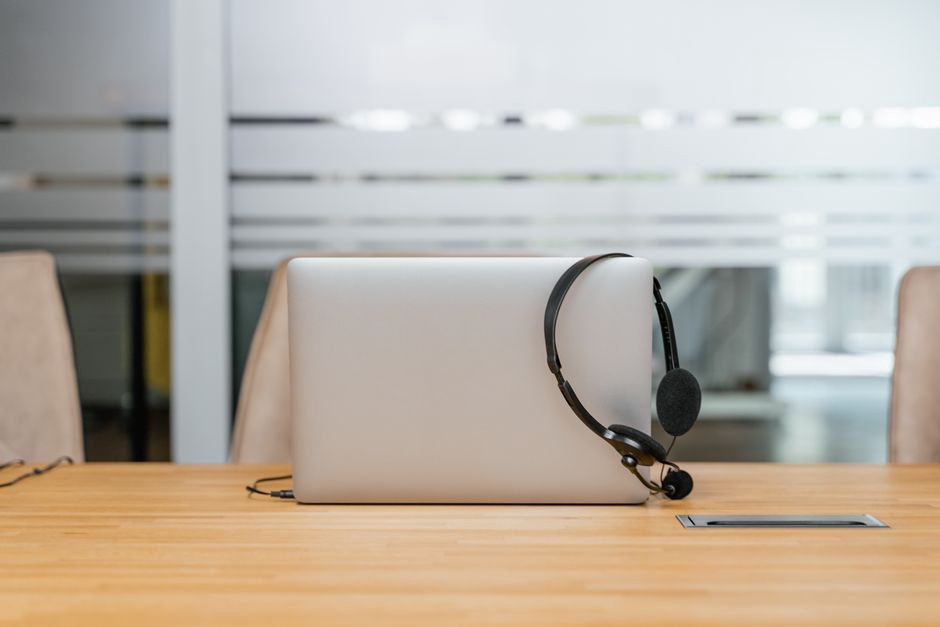
When someone else’s voice plays through your speakers, your mic can pick it up and send it back. Call software usually tries to suppress the echo, but that processing can clip speech or falter when both people talk at once. Headphones keep playback out of the room. Inexpensive wired earbuds can do the job if they’re comfortable and the cable stays still.
If headphones aren’t practical, turn down the speakers, move the mic farther from them, and avoid pointing them toward it. Raising your mic level in response to an echo can make the returning sound louder. If the other person hears their own voice coming back, check your end of the call; if you hear yours, ask them to check theirs. That beats changing settings at random.
Check the selected devices before adjusting levels
A computer may switch audio devices when you connect a headset, wake a dock, or reconnect wireless earbuds. In the call app, check which mic is sending your voice and which speakers or headphones are playing the call. The input meter should move when you speak near the mic you intend to use. If you’re unsure which mic is active, tap gently near each possible one, avoiding the capsule itself.
Set a level that leaves room for emphasis
Speak at your usual call volume, then try a louder sentence. If the meter repeatedly tops out or the recording sounds harsh and crackly, lower the mic gain or move back slightly. If you sound faint, check your position and the selected device before turning up the gain, which also raises room noise. Automatic level control is often fine for conversation, but in a noisy room it may bring up the background during pauses. If the app allows it, compare short recordings with the option on and off.
Check for a mute in the operating system, the call app, and any physical switch on the headset. A meter moving in one settings window doesn’t prove the meeting is using that same device.
Treat noise suppression as a tool, not a repair
Noise suppression can tame a fan or keyboard taps, but a strong setting may eat quiet syllables. It can be particularly awkward during a sound demonstration: sustained tones, room ambience, or a field recording may be treated as noise. For a spoken meeting, start with the default and increase suppression if another participant hears a problem. For a music discussion or playback session, test the app’s “original sound” or music mode beforehand. Those modes may switch off useful echo control, so headphones matter even more.
What you hear in a local preview may not be what the call sends; some apps process the audio afterward. Make a recording through the call app or ask someone to listen briefly. Change one setting at a time so you know what to undo if consonants start disappearing.
Separate connection trouble from microphone trouble
Choppy speech, long delays, or a robotic voice may point to the connection rather than the mic or room. If a local recording is clear while the call breaks up, pause large uploads or downloads, move closer to the router, or use a wired network connection if one is available. Closing unused browser tabs and apps may help if the computer is struggling with the meeting software. None of that will fix echo in an empty room, so listen for the symptom before changing the network.
A wireless headset adds another possibility. Low battery, interference, or a switch to its call mode can change how it sounds. If a wired headset is clear on the same call, look at the wireless link and its settings. Connect the headset before joining so the app is less likely to swap devices mid-call.
Run a short test that resembles the real call
Test in the seat and posture you’ll actually use, rather than leaning into the mic for five seconds. Record a minute of normal speech, a louder phrase, a pause, and a little typing. Listen through headphones for clipped beginnings of words, hiss rising during pauses, and bumps when you touch the desk. Then change one thing—mic position or suppression level, for instance—and record again.
If you plan to play audio for others, test screen sharing with the app’s system-audio option. Playing music through room speakers into a mic also captures the room’s reflections. Speak before and after playback to see whether the app changes input modes or levels. For an important call, leave your tested mic and headphones connected, and note their exact names in the audio menu. If the sound suddenly changes, you’ll know what to check first.