
A router by the front door can give you a strong signal in the hall and unreliable audio in the room where you actually listen. Before comparing the speed figures on boxes, sketch your floor plan. Mark where the internet connection enters, which rooms need dependable Wi-Fi, and the walls or floors in between. A small apartment and a long, divided house may need different equipment, even on the same internet plan.
Start with the connection and the rooms
Check your internet plan’s speed and the equipment your provider installed. Some homes have a separate modem or fiber terminal; others have a combined modem and router. Before replacing a combined unit, ask whether the provider allows it or whether the unit can be put into bridge mode. Otherwise, you may end up with two routers on one network, complicating connections between devices.
Test the connection near the router and wherever it gives you trouble. A laptop connected by Ethernet provides a reference for what the internet line can deliver; Wi-Fi tests in several rooms show where coverage drops. Repeat a troublesome test at different times. Slow speeds everywhere, including over Ethernet, suggest a different problem from a dead spot behind two walls. A new router cannot make an internet plan faster if the plan itself is the limit.
Count the devices that matter, too. Alongside phones and laptops, you may have a networked audio player, television, printer and smart-home equipment. What they do at the same time matters more than the total: streaming video while transferring large files to a studio computer puts different demands on a network than a collection of mostly idle sensors.
Choose the network shape before the speed rating
One router or several access points?
One router is a sensible starting point in a compact home if it can sit near the center of the area you use. Long corridors, multiple floors and dense internal walls can leave distant rooms poorly served. Metal cabinets and large appliances can block the signal, too. If the best spot for coverage is far from the incoming cable, a longer Ethernet run may help more than an expensive router left in a bad position.
For a larger or awkwardly shaped home, compare a mesh system with separate wired access points. Mesh units provide one network across multiple locations, but when they communicate over Wi-Fi, the link between units must also reach through the home. Put a satellite in a dead zone and it may have little signal to work with. An Ethernet cable between units, often called wired backhaul, removes that wireless hop. Existing Ethernet sockets in useful rooms make wired access points or mesh units with wired backhaul especially practical.
A plug-in extender may cover a modest gap, but it depends on the signal it receives where it plugs in. It cannot fix a dead zone by sitting in one. Before buying more hardware, try moving the router into the open, above floor level and away from a television cabinet.
Read Wi-Fi specifications without mistaking them for results
Wi-Fi 6 is a reasonable baseline for a new router. Wi-Fi 6E adds access to the 6 GHz band, while Wi-Fi 7 brings newer capabilities. Your phone or laptop must support a band and standard to benefit from them. The Wi-Fi overview distinguishes the standards from the marketing names printed on packaging.
Most homes still rely heavily on 2.4 GHz and 5 GHz. The 2.4 GHz band can reach farther and serve older devices, though it may be crowded. The 5 GHz band often performs better nearby but loses strength through obstacles. The 6 GHz band can give compatible devices more room, but its shorter reach is no substitute for well-placed access points in distant rooms. Available bands and channels also vary with local regulations.
Advertised wireless speeds are theoretical link rates, often added together across bands a single device cannot use simultaneously. Actual transfers lose speed to overhead and depend on signal strength, interference and the receiving device. Look for enough capacity for your internet connection and local transfers, then read independent tests that measure performance at a distance.
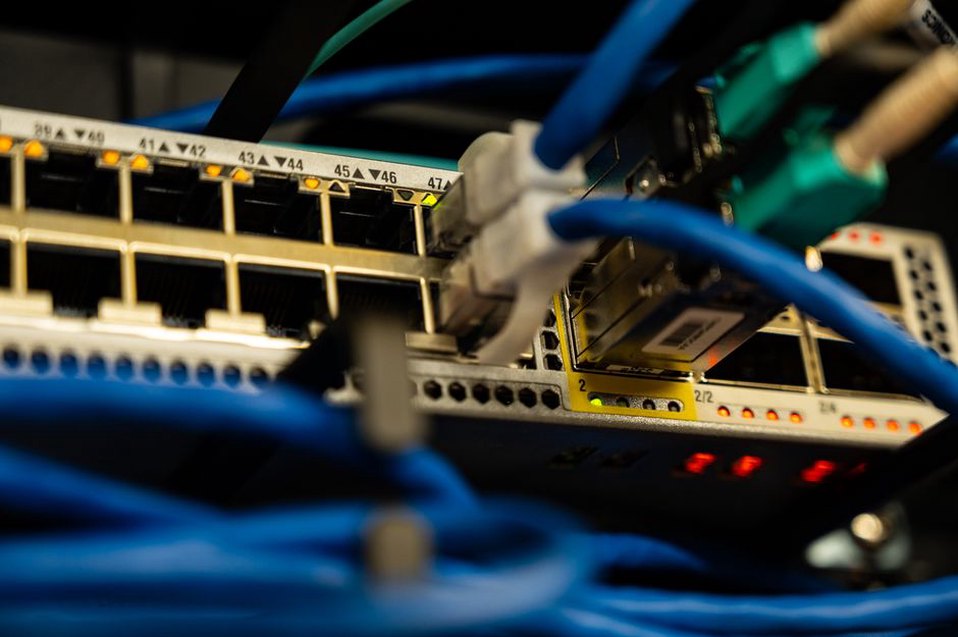
Check the ports as carefully as the wireless rating. A gigabit Ethernet port is useful for a desktop computer, network storage or a streaming device that stays put. If your internet service exceeds one gigabit per second, check both the router’s WAN port and the port or wireless connection your device will use; a slower link will limit what reaches it. A wired connection is particularly useful for moving large audio files or working with recordings stored elsewhere at home.
Check the less visible costs of ownership
Updates, controls and compatibility
Security support matters more than an elaborate antenna design. Look for clear firmware-update information, an automatic-update option, and WPA3 support alongside WPA2 for devices that still need it. Change the administrator password during setup and leave remote administration off unless you deliberately use it. A guest network can separate visitors’ devices from your own. Some routers also offer an isolated network for smart-home equipment, though the details vary by model.
Find out whether routine settings require a phone app or a manufacturer account. You may prefer a browser interface that lets you manage the router locally. If you need parental controls, VPN features or detailed device management, check what is included and what requires a subscription. Straightforward controls and continued updates are worth more than features you cannot easily maintain.
In a listening room or home workspace, think about which devices need to find each other. A phone controlling a networked audio player may need to share its network; guest-network isolation can block that connection. If a device needs 2.4 GHz for setup, check that you can connect it without permanently weakening security for everything else.
Make the final choice from a short test plan
Buy for the fault you found. If wired speeds are sound and only one distant room fails, prioritize coverage and placement over a higher speed rating. If Wi-Fi is weak even beside an aging router, a replacement may be enough. If several floors need service and cable runs are possible, price the wired option before paying for a larger wireless mesh kit.
After installation, use the same device to test beside the router, in the listening room and at the farthest workstation you regularly use. Run an internet speed test, then try a real task, such as transferring a large file across your local network. Note the results and where each unit sits. If the far room still struggles, move the satellite closer to the main router before adding another.