
A large cover photograph can hold up a cassette review before anyone reaches the first line of text. On a phone, that wait may matter more than a slight loss of sharpness in a smaller image. Speed matters here because it affects whether readers can find release details, follow the writing and choose when to play audio—not because a test gives the site a flattering score.
Measure the experience before changing the site
Start with a few representative pages: a photo-heavy article, a review with an embedded player, an archive with many entries and a page reached from search. Test on a phone and a computer. A quick homepage tells you little about an older post carrying large scans and third-party embeds.
Three measures help locate different delays. Largest Contentful Paint (LCP) measures when the main visible content appears. Interaction to Next Paint (INP) measures how promptly the page responds when someone opens a menu or taps a play control. Cumulative Layout Shift (CLS) catches unexpected movement, such as a paragraph pushed down when an image or player arrives. Treat these as clues, then use the page yourself: a headline may appear promptly while a font or script still holds back the first paragraph.
Compare real-visitor measurements, where available, with repeatable tests in a browser’s performance tools. Visitors use different devices and connections; controlled tests make it easier to judge an edit. Record the page, device, connection and date. Change one substantial thing at a time, and check that everything still works. A lighter page is no improvement if its audio controls vanish.
Give images the size their job requires
Scans, flyers and sleeve details can be evidence, not decoration. Give them enough resolution to do that job, rather than uploading the largest file the scanner produced. Keep the archival original separately and export a version sized for the article. If readers need to inspect tiny sleeve type, offer an enlargement instead of making every visitor download it.
Responsive images allow a narrow phone to request a smaller file than a wide desktop screen. Modern formats may cut transfer size, though much depends on the source and export settings. Check each image after compression: a dense photograph, a monochrome flyer and a page of fine print will not tolerate the same treatment. Heavy compression can erase exactly what the writing asks readers to notice. Supply width and height so the browser can reserve space. Give a prominent first image priority if it is essential to the visible page; defer images farther down until readers approach them.
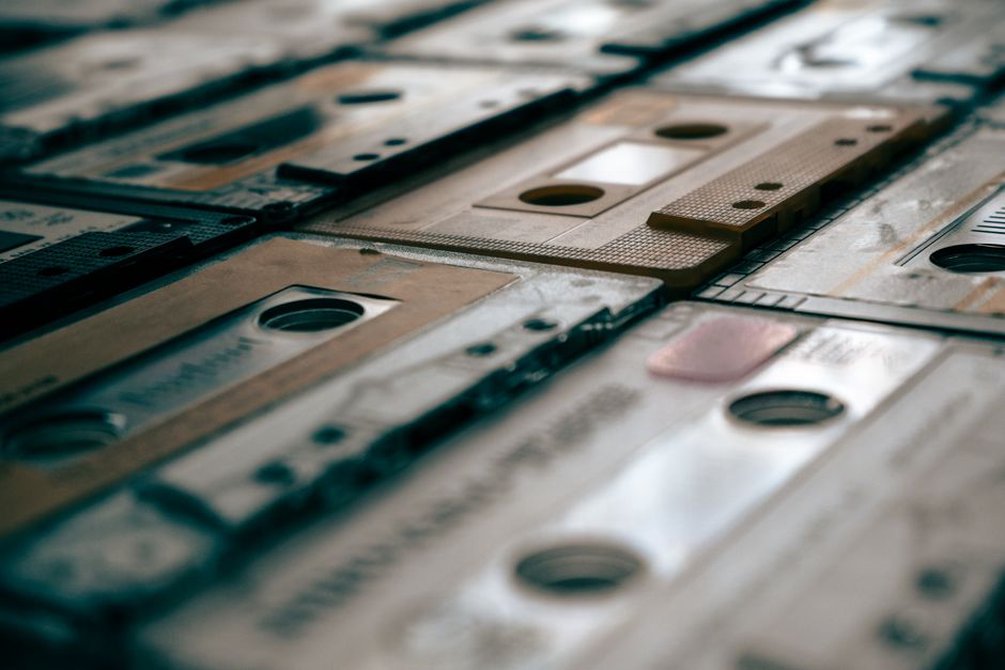
Alt text should describe meaningful content, not repeat a filename. It cannot stand in for a legible scan—or for a transcription when small printed text matters. A transcription may also save someone from opening a full-resolution file just to check a date or track title.
Keep audio available without making it mandatory
An embedded player may fetch scripts, fonts, artwork and tracking requests from another service before anyone decides to listen. Put several on an archive page and the cost grows. Compare the page with embeds enabled and disabled. If the publishing setup allows it, use a lightweight preview that loads the full player only when selected. Label that preview clearly and make sure it works by keyboard as well as mouse.
Do not start playback automatically to make the page seem quicker. That spends bandwidth without consent and is especially intrusive when someone is reading about noise, drone or field recordings before setting a comfortable volume. For a directly hosted excerpt, provide suitable audio formats and avoid downloading the whole file just to show a play button. Try seeking and playback on a mobile connection, too; a page can load quickly while its stream keeps stalling.
If an embed cannot be made lighter, put it after the essential release information and prose. Readers can still reach the facts if the third-party service is slow or unavailable. Identify the audio in plain text so its context does not disappear with the widget.
Remove work the browser does not need to do
Audit scripts and styles
Publishing systems collect leftovers: a sharing toolbar, an animation, a statistics service, a slider used on one page. Scripts can compete with text and controls for the browser’s attention, even when each addition seems minor. Check which features actually appear on the pages you tested. Remove unused plugins and load page-specific code only where it belongs. Delay nonessential scripts where possible, then test navigation, search and playback.
Fonts deserve the same scrutiny. Each extra family or weight adds files to fetch before text settles. A small selection with a dependable fallback usually serves long-form reading better than an elaborate stack. Recheck line breaks and headings after a change: an abrupt font swap can distract even if the page loads faster.
Reduce server and transfer delays
Browser caching lets returning readers reuse suitable files instead of fetching the same stylesheet and logo again. Compression cuts the transfer size of text-based code. Page caching can spare the server from rebuilding an unchanged article for every visit. Test these settings separately. A cache kept too long may leave a corrected caption or article out of date.
Cheap hosting may serve a small publication well until server response becomes the bottleneck. Check how long it takes the server to begin delivering a basic article before paying for a larger plan or adding a content delivery network. Distributed copies can bring static files closer to distant readers; they cannot fix oversized images, obstructive scripts or a broken template.
Make archive pages light enough to browse
An archive can be the slowest entrance to a music journal, carrying years of covers, excerpts and summaries on one page. Show a manageable number of entries, use thumbnails sized for the list and skip players on individual archive cards. Clear titles, dates where known and brief descriptions let readers choose what to open without an interactive preview for every release.
Give search results and tag pages the same care. Someone tracing a cassette label or an artist’s appearances may open several entries in succession. Consistent navigation and cached assets keep each click from becoming another oversized download. Keep older material accessible without JavaScript-dependent controls; ordinary pagination is often enough.

Check what speed changes take away
Every speed fix has a cost to check. Lazy-loading an image in the first screen may delay the very thing readers are waiting for. Too much compression can make a flyer’s lettering illegible. A preview may save data but frustrate someone who cannot activate it. After each change, inspect the page on a small screen, enlarge the text, use a keyboard and try a slow connection. Check that captions remain with their images and that a loading player does not make the page jump.
A practical order of work is:
- Identify the slow page and the visible delay. Record whether the trouble lies in server response, main content, interaction or movement.
- Fix heavy assets first. Resize the largest images and inspect embeds before redesigning the whole site.
- Remove unnecessary code. Disable unused features, then test search, menus and playback.
- Verify on the same pages and devices. Compare measurements, then read and use the pages as a visitor would.
Keep the original files and a note of each change. You may need to restore a scan whose compressed version loses important detail, or undo a script setting that breaks playback. For the next article with a full sleeve scan, check its displayed width before upload, make a smaller web version and open the published page on a phone. The track information should still be legible.